

Cash on delivery (Dobírka) lets customers pay the courier when the parcel arrives. You set up the payment method in Shopify, and ShipDock sends the amount to collect with the shipping label.
Before you start
You need a ShipDock plan. Creating shipping labels, which is when the COD amount goes to the courier, needs the Full plan.
A connected courier that supports COD: Supported couriers and what each one can do.
Step 1: Add a COD payment method in Shopify
In your Shopify admin, go to Settings → Payments.
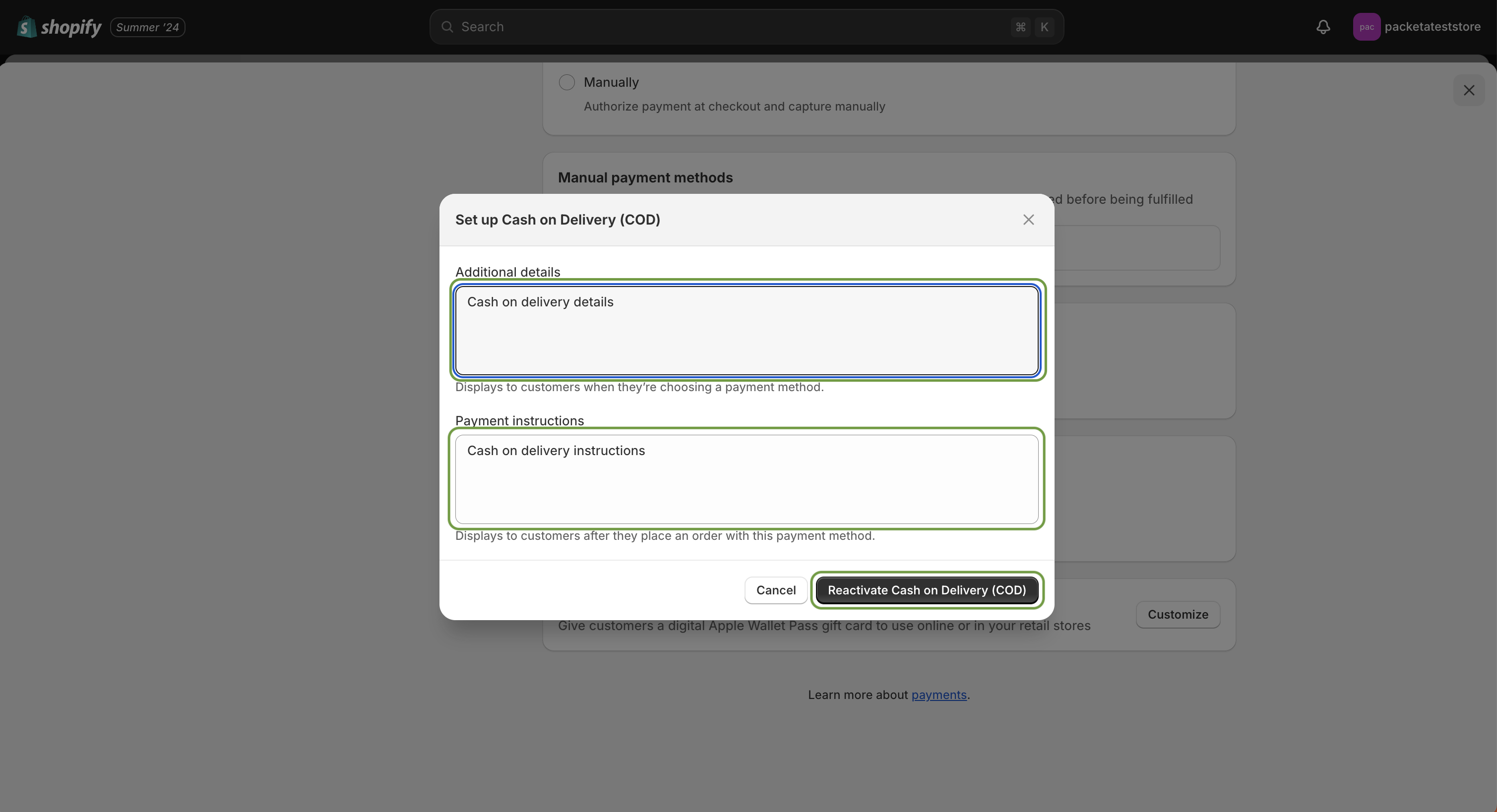
In Manual payment methods, select Cash on Delivery (COD). ShipDock recognises it without extra setup.
Fill in Additional details and Payment instructions, then click Activate Cash on Delivery (COD).
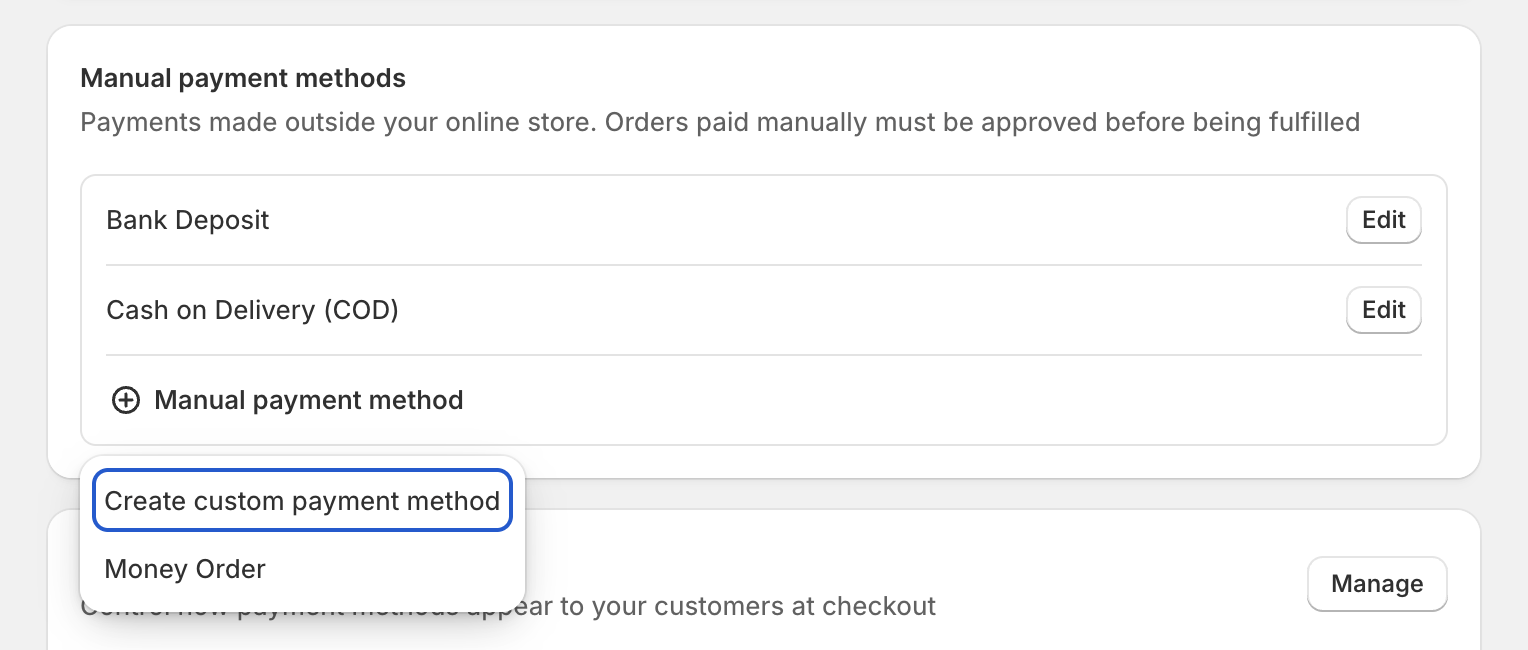
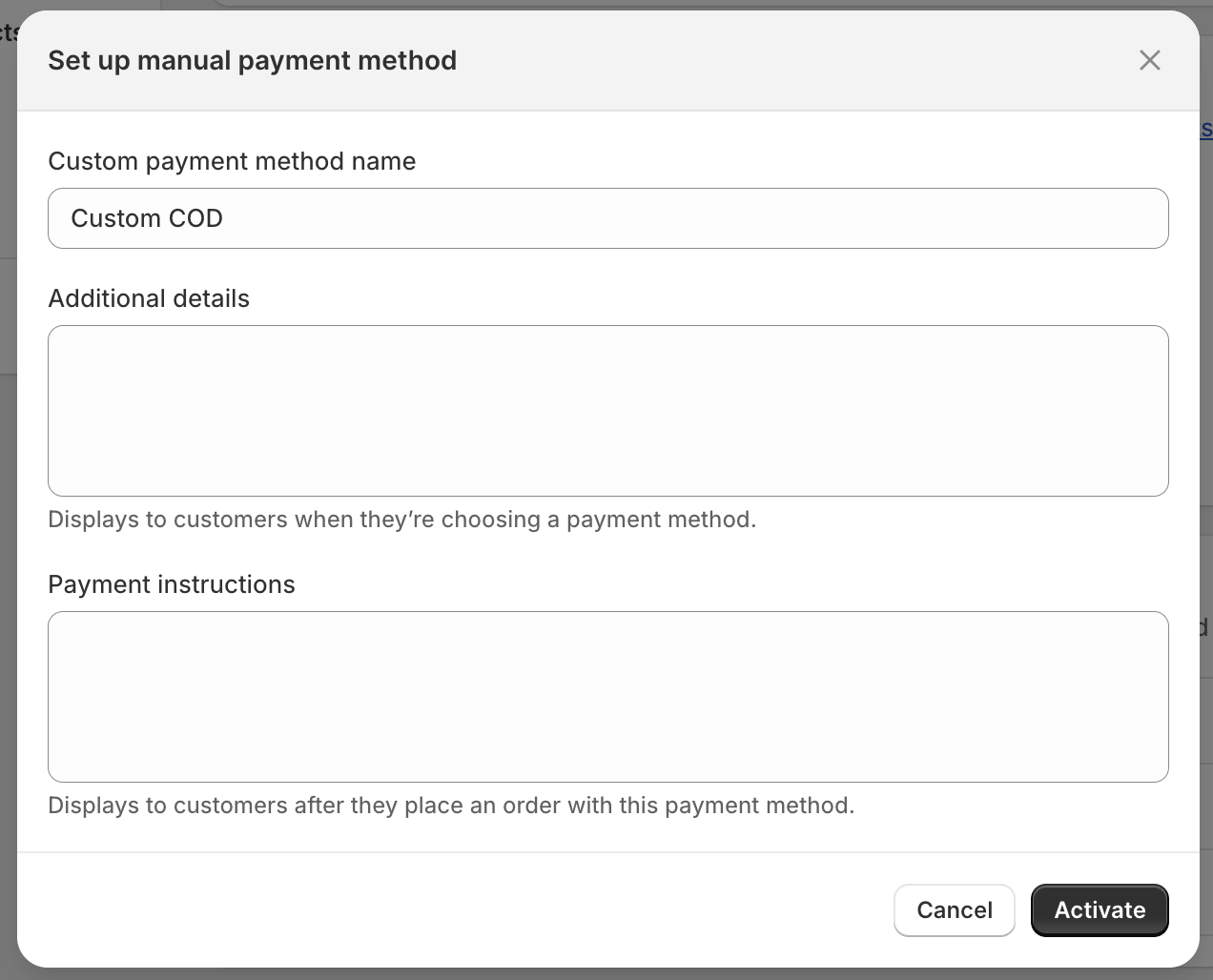
For your own name, choose Create custom payment method instead, enter the Custom payment method name and click Activate.
Step 2: Make sure ShipDock recognises the payment method
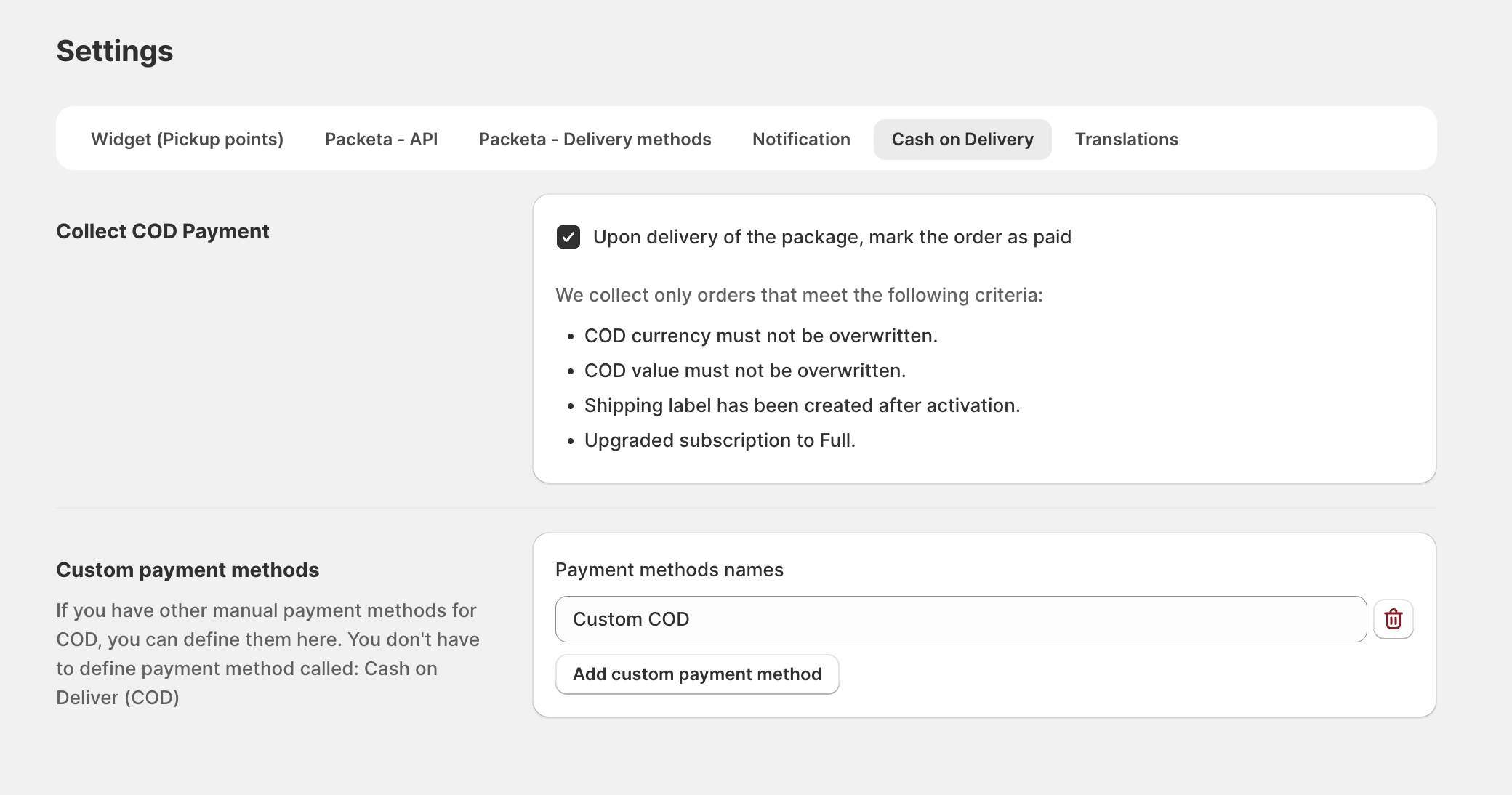
ShipDock treats an order as COD when the payment method name contains "COD", "Dobírka" or "dobírkou", in upper or lower case. Any other name, for example "Platba při převzetí" or "Nachnahme", must be added:
In ShipDock, open Settings → Cash on Delivery.
In the Custom payment methods card, click Add custom payment method and enter the name exactly as it is in Shopify.
Click Save. COD orders then show a COD badge in Orders.
What ShipDock sends to the courier
Which orders: only COD orders with the Shopify payment status Pending or Partially paid. For a partially paid order, only the amount still to be paid is collected.
Currency: the currency the customer paid in. ShipDock does not convert COD amounts.
Rounding: CZK to a whole number (499.50 becomes 500), HUF up to a multiple of 5 (1,232 becomes 1,235), other currencies to 2 decimals.
Important: If a COD order is already Paid in Shopify when you create the label, ShipDock sends no COD amount and the courier collects no money. Do not mark COD orders as paid before the label exists.
Change the COD amount on one order
Before you create the label, click the pencil icon (Edit order) in the order row in Orders.
Turn on Override COD value and enter the COD value: a whole number for CZK, a multiple of 5 for HUF, 0 to send without COD.
For a different currency, turn on Override currency. The amount is not converted, so also override the COD value.
Save.
Limits
Any payment method with the letters "cod" in its name is treated as COD. Do not use them in the name of another payment method.
For a courier or currency without COD (Fan Courier accepts COD only in RON), the label usually fails with a message to set the COD value to 0.
If the label already exists, a changed COD amount does not reach the courier. Cancel the shipment and create the label again.
Orders with an overridden COD value or currency are not marked as paid automatically after delivery.
The courier pays out to the account in your contract. Some couriers have a COD Details card on the General tab for a different account.
Troubleshooting
No COD amount on the label: the payment method name is not recognised, the order was already Paid in Shopify, or the courier does not support COD.